 CollectorCtrl
Telemetry Stream Taps & Edge Sampling
Edge Tapping Engine
Dynamic Signal Cloner & Dual-Tier Sampler
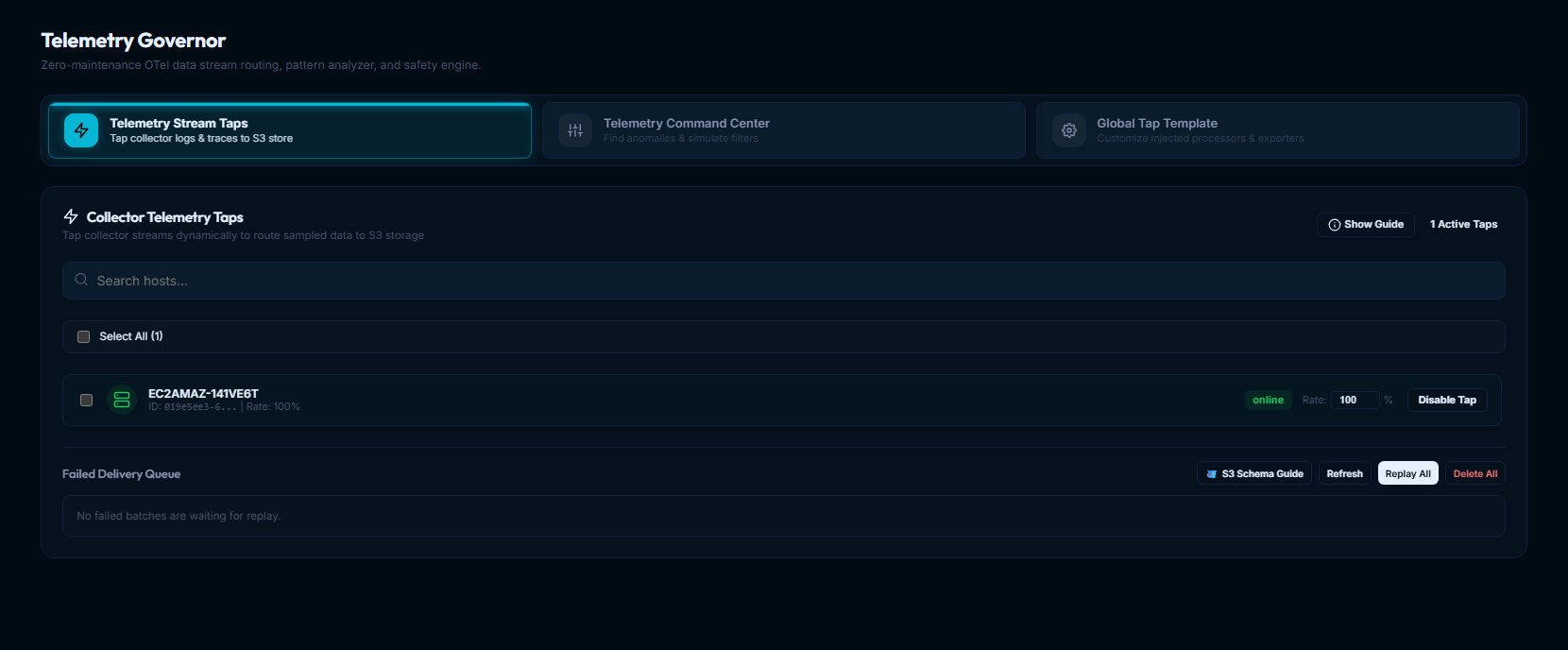
The Telemetry Stream Tap is a dynamic, non-invasive probe enabled on any OpenTelemetry collector managed by CollectorCtrl. It allows you to tap into live collector streams at the host edge, and send a uniform sample of logs and spans (every severity at the same rate) to CollectorCtrl for pattern analysis, without impacting primary production APM exports.
Sampled telemetry is transmitted directly to the CollectorCtrl ingestion gateway into an in-memory ring buffer, recorded in a transient hot store kept for 1 to 7 days max, and summarized into 1-minute pattern rollups. After the retention window, raw records are automatically discarded—meaning you do not need dedicated long-term storage clusters unless you opt to stream to an S3 Data Lake or external OTLP destination.
 Expand
1. What is a Telemetry Stream Tap?
When you turn on a Stream Tap on a target collector:
- Selective Collector Targeting: Enable taps globally across an entire environment or on specific collectors. You can assign a uniform agreed sampling rate or configure variable rates based on service criticality (e.g., 2% on high-throughput stateless ingress proxies, 10% on core payment services).
- Non-Invasive Config Compilation: CollectorCtrl compiles the active Global Tap Template specifically for that agent instance, resolving HMAC authentication tokens, ingest endpoints, and sampling rates.
- Receiver Attachment: The agent's base receivers (such as
otlp,prometheus, andhostmetrics) are connected to newly synthesized parallel tap pipelines. - Authenticated Streaming: The tap begins forwarding secondary telemetry batches over authenticated HTTP (
X-CollectorCtrl-Tap-Token) to the Telemetry Governor ingress gateway. - Isolated Execution: The collector's primary production pipelines continue streaming to Datadog, Splunk, Dynatrace, or CloudWatch with zero latency penalty or socket contention.
2. Uniform Sampling (One Rate for Every Severity)
The tap samples every log and span at the same rate, 10% by default:
Incoming Collector Stream
       │
       ├── Log Severity >= 13 (WARN, ERROR, FATAL) ────► Probabilistic Sampler (e.g. 10%)
       │
       ├── Log Severity < 13 (DEBUG, INFO) ────────────► Probabilistic Sampler (e.g. 10%)
       │
       ├── Span Status == 2 (ERROR) ───────────────────► Probabilistic Sampler (e.g. 10%, by trace ID)
       │
       └── Span Status != 2 (OK / UNSET) ──────────────► Probabilistic Sampler (e.g. 10%, by trace ID)
Errors and non-errors still travel in separate tap pipelines, so custom processors can be chained to one or the other, but both use the same sampler and rate.
Why one rate:
- Fair pattern ranking: Telemetry Insights ranks patterns by how many records it received. With one rate for every severity, a pattern's share of the sample matches its share of the real stream, so a noisy
WARN retrying connectionstorm appears at its true size next to INFO logs. - Complete traces: Spans are sampled by trace ID, so a sampled trace keeps its error and non-error spans together.
- Predictable tap cost: The tap sends a fixed fraction of the stream to CollectorCtrl, however many errors occur.
Frequent patterns always appear in the sample; rare ones may not. At 10%, a pattern that occurred 10 times has about a 35% chance of being missed entirely, 30 times about 4%, and 100 or more effectively never. Use your observability platform for alerting and for investigating individual errors.
3. How to Enable and Configure a Stream Tap
Stream taps can be managed globally from the Telemetry Governor tab or locally from any individual collector's details view.
1. Open Collector Telemetry Taps
Navigate to Telemetry Governor → Telemetry Stream Taps. Use the search bar to locate target hosts by hostname or Agent UUID.
2. Set the Sampling Rate
Adjust the Rate (%) input field for the target collector. The rate applies to every severity:
10%(Default, Recommended): Enough to rank recurring patterns. Insights suggests a pattern once it has 30 received records, about 300 real occurrences in the selected time range.1%–5%: For very high-volume sources. Only larger patterns reach the suggestion threshold (about 3,000 occurrences at 1%).100%: Full fidelity diagnostic mode. Captures a complete replica of all logs, traces, and metrics for live sandbox debugging.
Use the same rate across the fleet where you can: pattern counts compare fairly only between sources sampled at the same rate.
3. Activate the Stream Tap
Click Enable Tap. CollectorCtrl performs a cryptographically signed OpAMP configuration update:
- Generates an agent-specific HMAC-SHA256 tap token.
- Injects the tap pipelines into the collector's effective configuration.
- The edge supervisor executes a graceful reload without dropping client connections.
4. Clean Rollback & Edge Self-Healing
Clean Rollback Guarantee
When you click Disable Tap:
- CollectorCtrl triggers
StripTapConfigWithTemplate. - All tap-specific processors (such as
probabilistic_sampler/telemetry_governor,filter/telemetry_governor_*_logs, and any custom template processors) are stripped. - Tap exporters (
otlphttp/telemetry_governor_*) and pipelines (logs/telemetry_governor_*,traces/telemetry_governor_*) are unlinked. - The collector configuration reverts cleanly to its original baseline state with zero residual artifacts.
Edge Self-Healing
If an edge agent restarts, reboots, or temporarily loses network connectivity with the CollectorCtrl server while tapped:
- The local supervisor reads its cached effective configuration.
- The tap pipelines are restored locally on collector boot.
- Data buffering ensures tap continuity even across network partitions.
5. Failed Delivery Queue & Dead Letter Replay
The Failed Delivery Queue monitors forward jobs that could not be delivered to remote destinations (e.g. S3 timeout, expired IAM credentials, or OTLP endpoint downtime):
- Quarantine Storage: Failed batches are quarantined in the local
telemetry_dead_letterstable. - One-Click Replay: Once downstream network connectivity is restored, click Replay All to re-dispatch quarantined payloads in chronological order.
- Safe Purge: Click Delete All to clear old dead letters and reclaim local storage.