 CollectorCtrl
Upgrade Supervisor Fleet-Wide
Push new Supervisor versions with automatic rollback protection.
What You'll Learn
- Where to download the latest Supervisor binaries from GitHub Releases
- How to access the dedicated Supervisor Lifecycle Management settings
- How to upload Supervisor binaries and metadata to the Package Repository
- How to trigger upgrades on connected agents from the Supervisors list
- How the connection watchdog and automatic rollback keep your fleet safe
Time: ~10 minutes
Prerequisites
- A running CollectorCtrl Management Server (Web UI at
http://<server-ip>:4321and OpAMP WebSocket atws://<server-ip>:4320/v1/opamp) - One or more connected Supervisor agents (Install on Windows | Install on Linux)
- Access with administrator privileges to the CollectorCtrl Web Console
Step 1: Download the Target Supervisor Binary
Obtain the latest Supervisor binary for your fleet's operating system and CPU architecture from the official CollectorCtrl GitHub Releases.
Release assets provide standalone binaries for each supported platform:
- Windows x86_64 (AMD64):
collectorctrl-supervisor_<version>_windows_amd64.exe - Windows ARM64:
collectorctrl-supervisor_<version>_windows_arm64.exe - Linux x86_64 (AMD64):
collectorctrl-supervisor_<version>_linux_amd64 - Linux ARM64:
collectorctrl-supervisor_<version>_linux_arm64
 Expand
Each release on GitHub includes a SHA-256 checksum for every binary. CollectorCtrl automatically computes the SHA-256 digest upon upload and verifies it on the agent before swapping binaries.
Step 2: Navigate to Supervisor Lifecycle Management
Supervisor agent management has a dedicated workspace inside the management console:
- Log into your CollectorCtrl Web Dashboard (
http://localhost:4321). - In the left navigation menu, click Settings (⚙️).
- In the settings flyout menu, select Supervisor Management (Lifecycle and sidecar configurations).
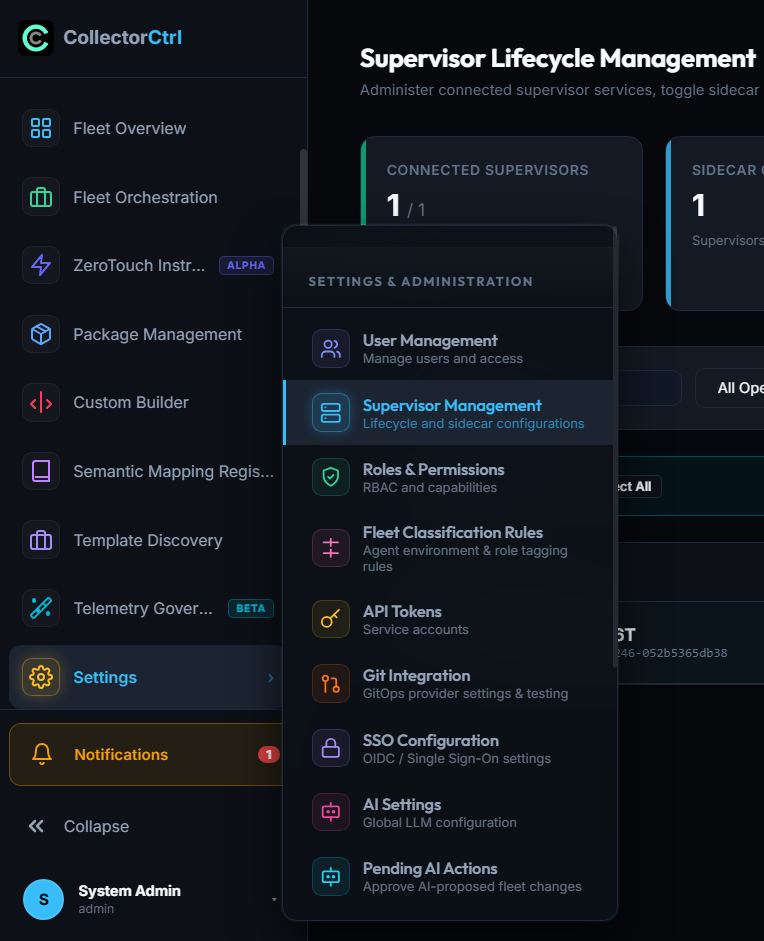 Expand
This opens the Supervisor Lifecycle Management dashboard.
Step 3: Upload the Supervisor Binary to the Package Repository
Before upgrading agents, upload the new binary into CollectorCtrl's internal package repository:
- In the top-right corner of the Supervisor Lifecycle Management page, click the Package Repository tab.
- Under the Upload Supervisor Binary panel on the left, fill in the required metadata:
| Field | Example Value | Description |
|---|---|---|
| Version | 0.4.6-beta | The version string of the supervisor binary. |
| Target OS | Windows or Linux | Select the matching operating system from the dropdown. |
| Tags (comma separated) | amd (or arm, production) | Architecture or label tags. (The supervisor tag is added automatically). |
| Binary File | collectorctrl-supervisor_0.4.6-beta_windows_amd64.exe | Select the binary file downloaded from GitHub. |
- Click Upload Supervisor Package.
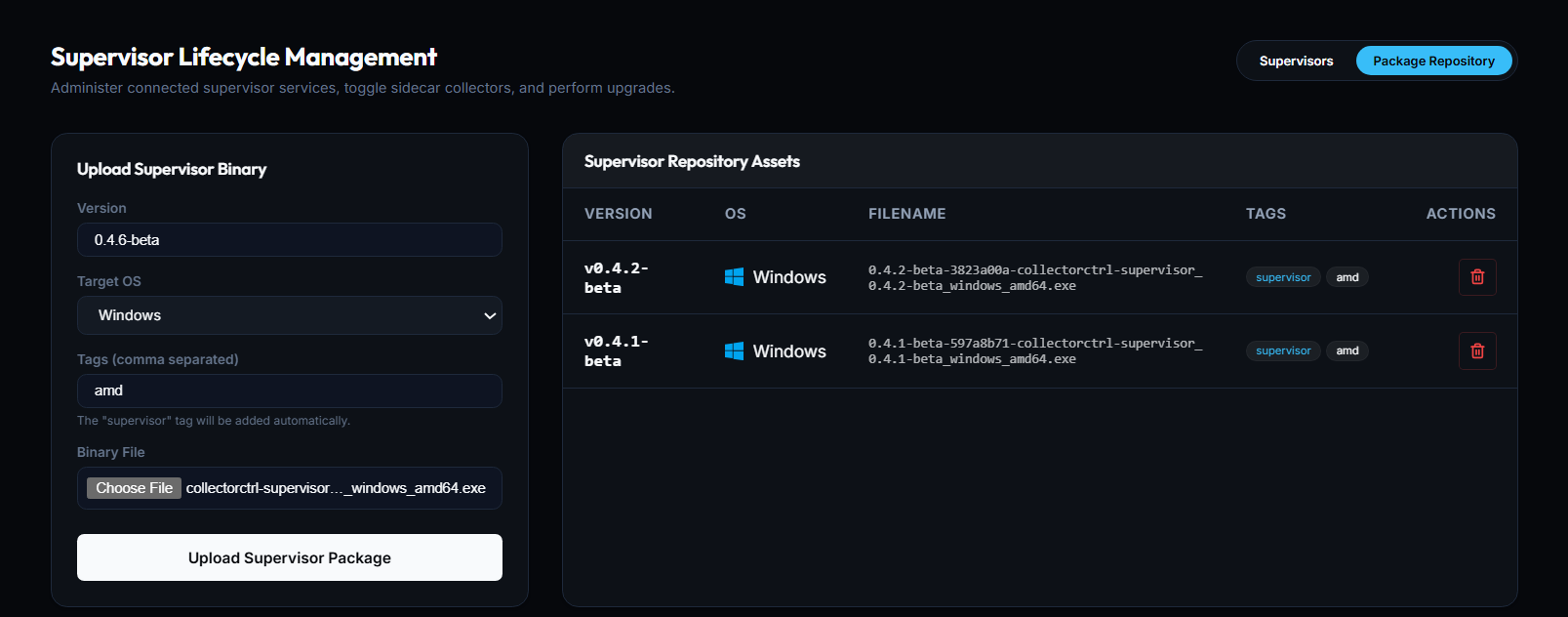 Expand
Once uploaded, the new binary appears immediately under Supervisor Repository Assets with its version, OS, generated filename, and assigned tags.
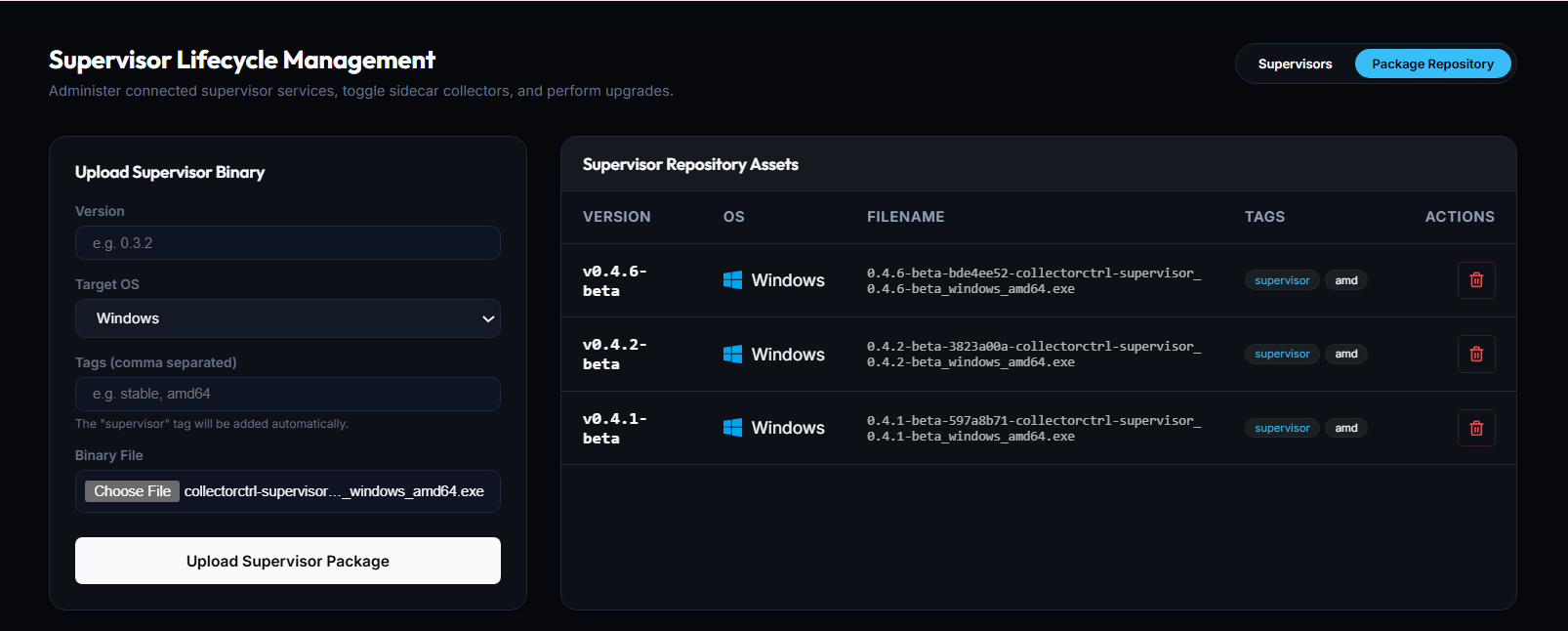 Expand
Step 4: Upgrade Supervisors from the Supervisors List
Once the package is in the repository, switch to the Supervisors tab to review and upgrade connected agents.
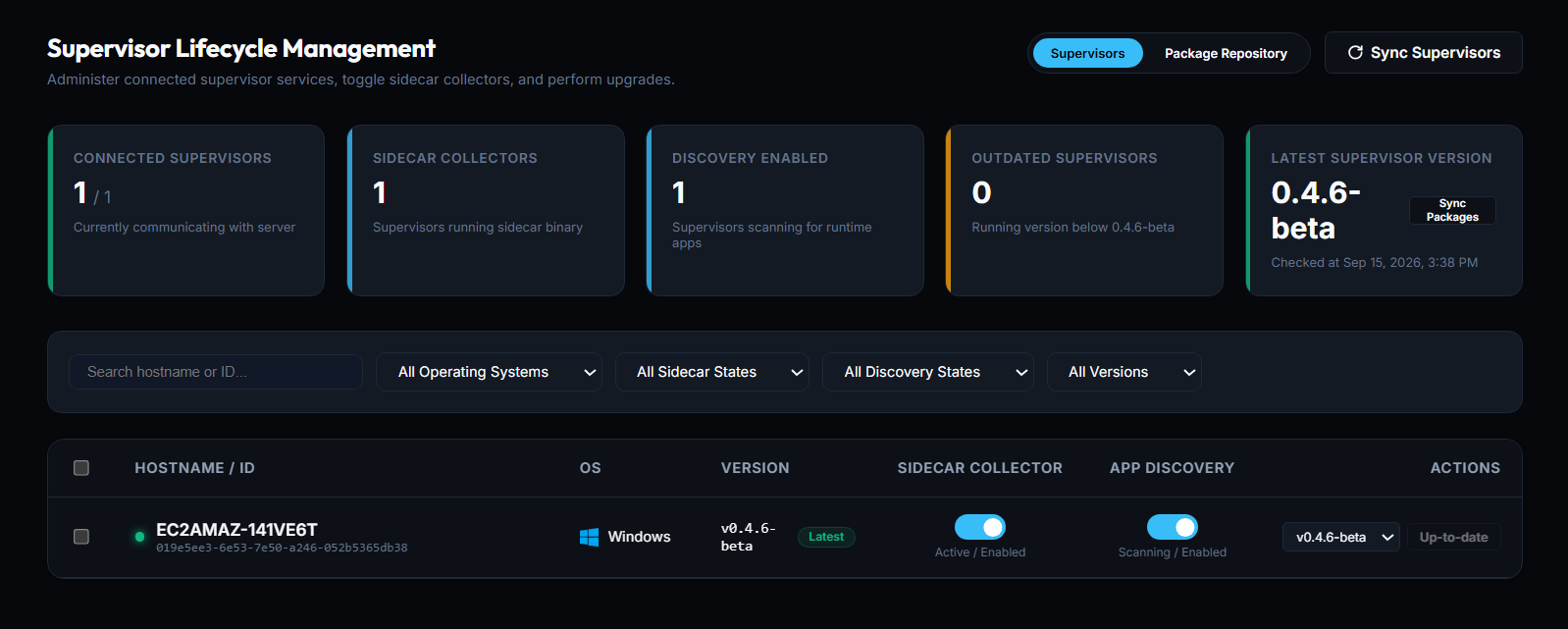
Review Fleet Health & Version Status
The top metric cards give you real-time visibility into your fleet:
- Connected Supervisors: Number of supervisor agents currently connected and communicating over OpAMP.
- Sidecar Collectors: Supervisors actively running an OpenTelemetry Collector sidecar instance.
- Discovery Enabled: Supervisors actively scanning for host processes, runtime applications, and microservices.
- Outdated Supervisors: The number of connected agents running a version older than the latest uploaded package.
- Latest Supervisor Version: Displays the newest package version detected in the repository.
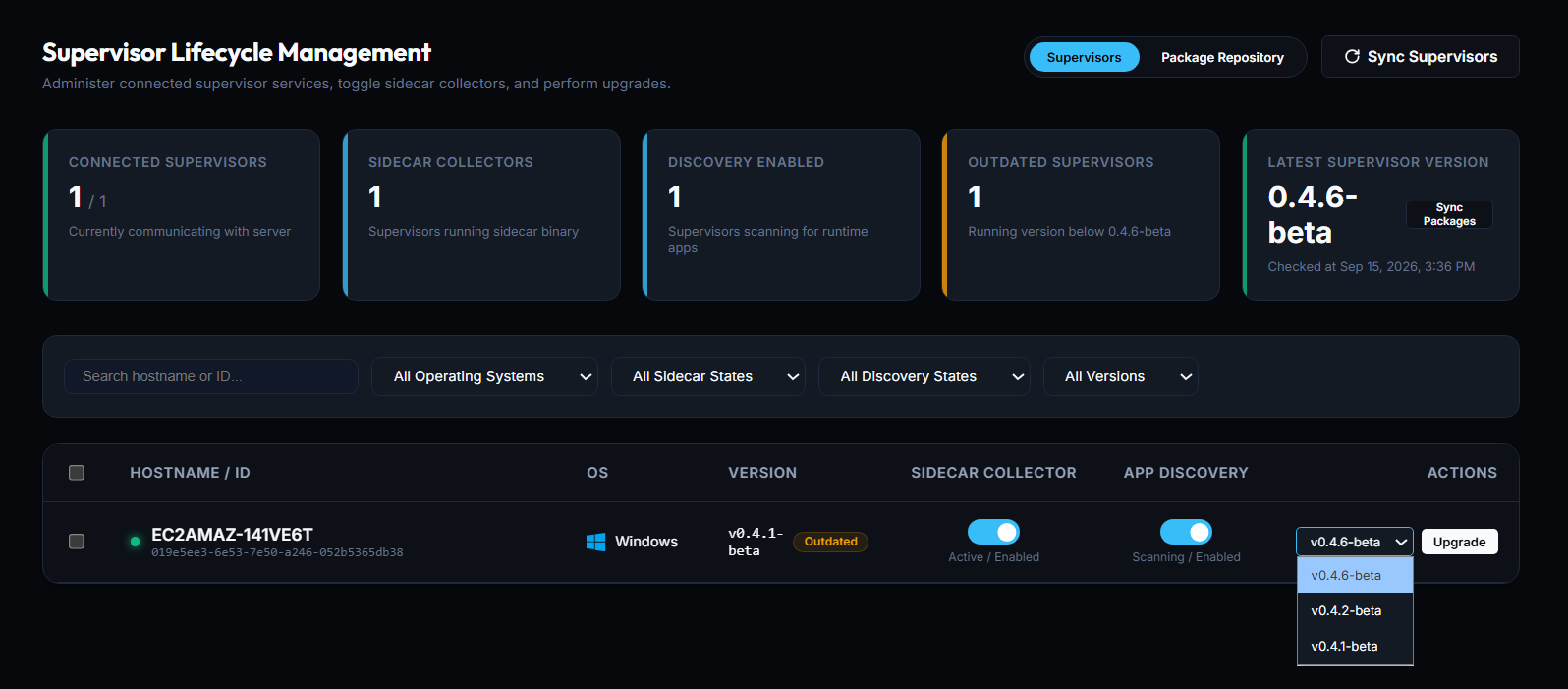 Expand
Execute the Upgrade
In the Supervisors table:
- Locate the host you want to upgrade (e.g.
EC2AMAZ-141VE6T). Outdated hosts display an amber Outdated badge next to their current version. - In the ACTIONS column, click the version dropdown and select the newly uploaded version (e.g.
v0.4.6-beta). - Click the Upgrade button.
Agent: EC2AMAZ-141VE6T | OS: Windows | v0.4.1-beta [Outdated] → [v0.4.6-beta ▼] [Upgrade]
CollectorCtrl immediately dispatches the upgrade command over the established OpAMP WebSocket channel.
Step 5: Verify the Upgrade
The upgrade process executes smoothly in the background:
- The Supervisor agent receives the upgrade package URL and SHA-256 hash.
- The agent downloads the package into its local staging directory.
- It verifies that the SHA-256 hash matches the server's manifest.
- The existing binary is safely backed up (
supervisor.exe→supervisor.exe.bak). - The new binary is swapped into place.
- The service restarts and reconnects to the CollectorCtrl server over OpAMP.
Once the upgraded agent re-establishes connection:
- The VERSION column reflects the new version with a green Latest badge.
- The action button displays Up-to-date (disabled).
- The OUTDATED SUPERVISORS counter decrements to 0.
 Expand
Additional Host Controls: Sidecars & Discovery
In the Supervisors table, you also have one-click controls for each individual host:
- Sidecar Collector: Toggle the switch to dynamically start or stop the local OpenTelemetry Collector managed by the supervisor.
- App Discovery: Toggle runtime application discovery to let the supervisor scan for running databases, Java/Node/Python apps, and web services for zero-touch telemetry configuration.
How Automatic Rollback Protects Your Fleet
CollectorCtrl utilizes an embedded watchdog fail-safe to ensure an upgrade never leaves an agent unreachable or broken:
[Server dispatches upgrade v0.4.6-beta]
                │
                ▼
[Supervisor downloads package & validates SHA-256]
                │
                ▼
[Backup binary: supervisor.exe → supervisor.exe.bak]
                │
                ▼
[Swap binary to v0.4.6-beta & start watchdog timer (45s)]
                │
                ▼
[Service restarts new Supervisor binary]
                │
       ┌────────┴────────┐
       ▼                 ▼
[Connects within 45s]  [Fails to connect / crash]
       │                 │
       ▼                 ▼
[Watchdog cancelled]   [Watchdog triggers rollback]
[Upgrade Successful!]  - Kills unresponsive process
                       - Restores supervisor.exe.bak
                       - Service manager restarts old version
                       - Agent reconnects & reports failure
If a new Supervisor binary fails to connect back to the management server within 45 seconds (due to missing dependencies, crash, or bad network configuration), the watchdog restores the previous .bak binary automatically. You will never lose remote access to a node due to an upgrade failure.
Troubleshooting
| Problem | Cause | Solution |
|---|---|---|
| Target version not visible in ACTIONS dropdown | Package not uploaded or OS/architecture tag mismatch | Ensure the package was uploaded in the Package Repository tab with the correct Target OS and architecture tag (amd or arm). |
| Outdated badge remains after upgrade | Agent has not finished restarting or cache hasn't refreshed | Wait 10–15 seconds for the agent service to restart and re-authenticate over OpAMP, or click Sync Supervisors in the top right. |
| Agent rolls back to previous version | New binary crashed or couldn't reach OpAMP port 4320 | Check host service logs (eventvwr on Windows or journalctl -u collectorctrl-supervisor on Linux). Verify network access to ws://<server>:4320/v1/opamp. |
| Upload fails with checksum error | Incomplete download from GitHub | Re-download the Supervisor binary from GitHub Releases and check the SHA-256 hash before uploading. |
Next Steps
- Fleet Orchestration & Policy — apply centralized telemetry configurations and canary rollouts
- Explore the Telemetry Governor — monitor fleet data health